> For the complete documentation index, see [llms.txt](https://knowledgebase.offer18.com/llms.txt). Markdown versions of documentation pages are available by appending `.md` to page URLs; this page is available as [Markdown](https://knowledgebase.offer18.com/network/e-commerce-integration/woocommerce.md).
# WooCommerce
In order to integrate with WooCommerce one needs to place Offer18 Image Pixel in WooCommerce (WordPress).
### [Get Image Pixel](/network/postback-integration.md)
***
## WooCommerce Integration
There are two ways to add Offer18 Image Pixel to WooCommerce:-
### Option 1 : WordPress Plugin
One can use WordPress plugin "WooCommerce Conversion Tracking" by weDevs.
Steps to follow:
1. Login to the WordPress Admin dashboard.
2. Go to "Plugins" and search "WooCommerce Conversion Tracking".\
3. Install and activate "WooCommerce Conversion Tracking" by weDevs.
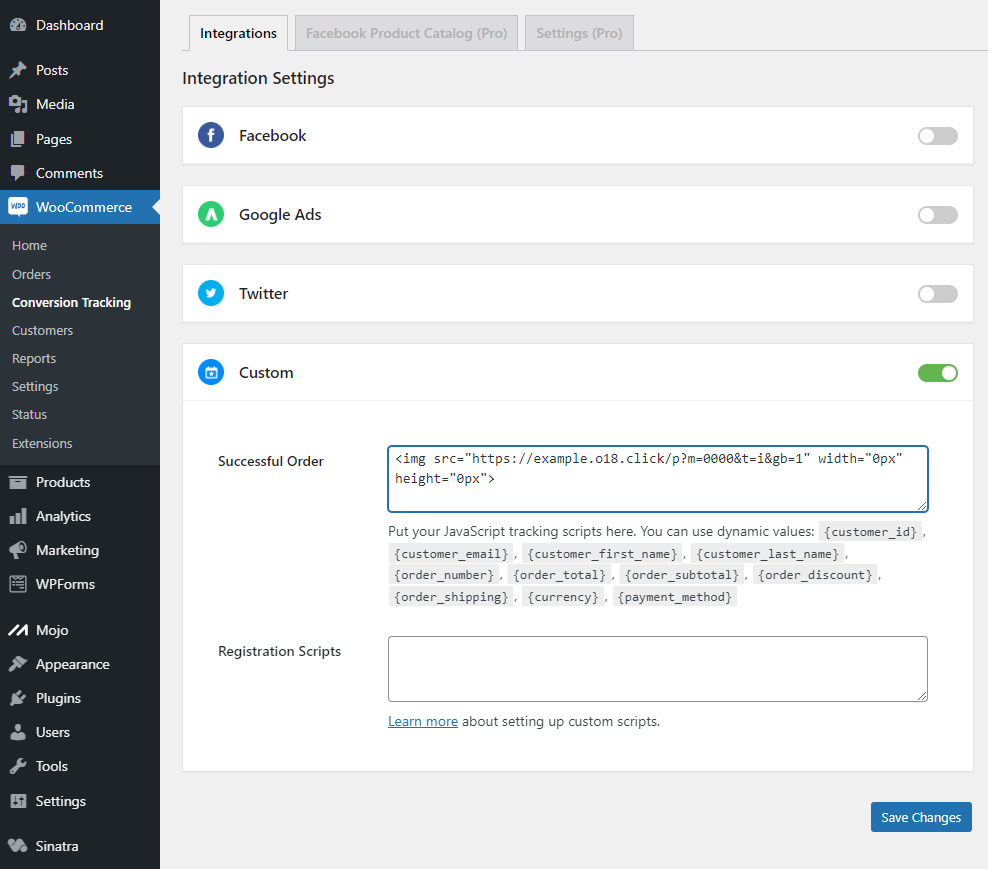
4. Go to Conversion Tracking (sub-menu to the WooCommerce tab).
5. Enable "Custom" and Place Offer18 Pixel in "Successful Order."
6. Go to Save Changes
One can receive dynamic values using tokens provided by the Plugin.\
For Example: **\&sale** (Offer18) can be added to an Image pixel containing **{order\_subtotal}**
**Example Image pixel with sale parameter**
```
```
***
Video Tutorial - WooCommerce Integration
{% embed url="" %}
***
### Option 2 : Custom Configuration
One can configure the **Conversion Tracking Syntax** in a custom configuration of the WordPress. Offer18's Conversion Tracking Syntax is given below.
#### **Conversion Tracking Syntax**
```php
add_action('woocommerce_thankyou', 'custom_track_o18');
function custom_track_o18($order_id)
{
$order_data = wc_get_order($order_id);
$total_amount = $order_data->get_subtotal();
$currency = $order_data->get_currency();
$order_number = str_replace('#', '', $order_data->get_order_number());
echo '';
}
```
{% hint style="info" %}
**Required Changes**\
\
Replace \[domain] with the tracking domain and \[account\_id] with the user account id in the script
For Example
\[domain] = **example.o18.click**\
\[account\_id] = **0000**
{% endhint %}
Steps to follow
1. Login to the WordPress Admin dashboard.
2. Go to Appearance **»** Theme File Editor.
3. Open the **functions.php** file.
4. Place Offer18's Conversion Tracking Syntax in this file.
5. Go to "Update File."